
Getting Started
A quick guide to your first MailUprooter archive or mailbox operation.
1. Sign In
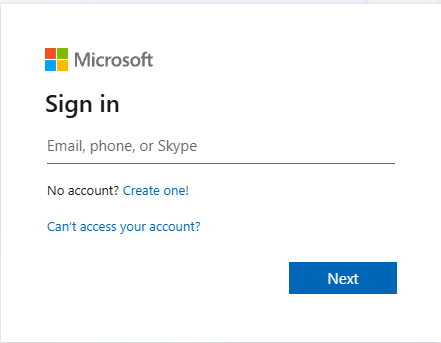
Launch MailUprooter and click Login.
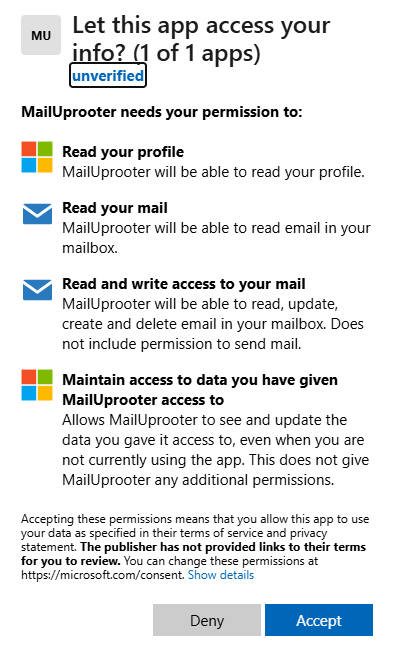
Sign in with your Microsoft 365 account and approve the requested permissions.
The first time you use the product, you will be invited to accept the permissions required for the software to access your mailbox
Please Note, that these are delegated permissions that are provided to the software as it runs locally on your machine to talk the the Microsoft Graph API. No other systems or services will have access to your mailbox, and you can choose to revoke these permissions at any time by browsing to https://account.microsoft.com , selecting App Access, then selecting the MailUprooter app and click Don't Allow

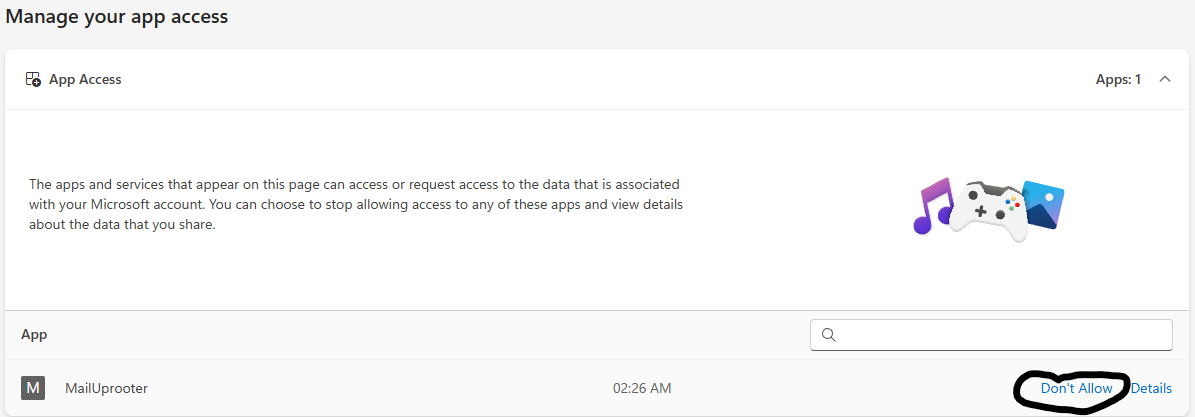 Once this updates, this would prevent the MailUprooter™ software from functioning unless this permission was added back.
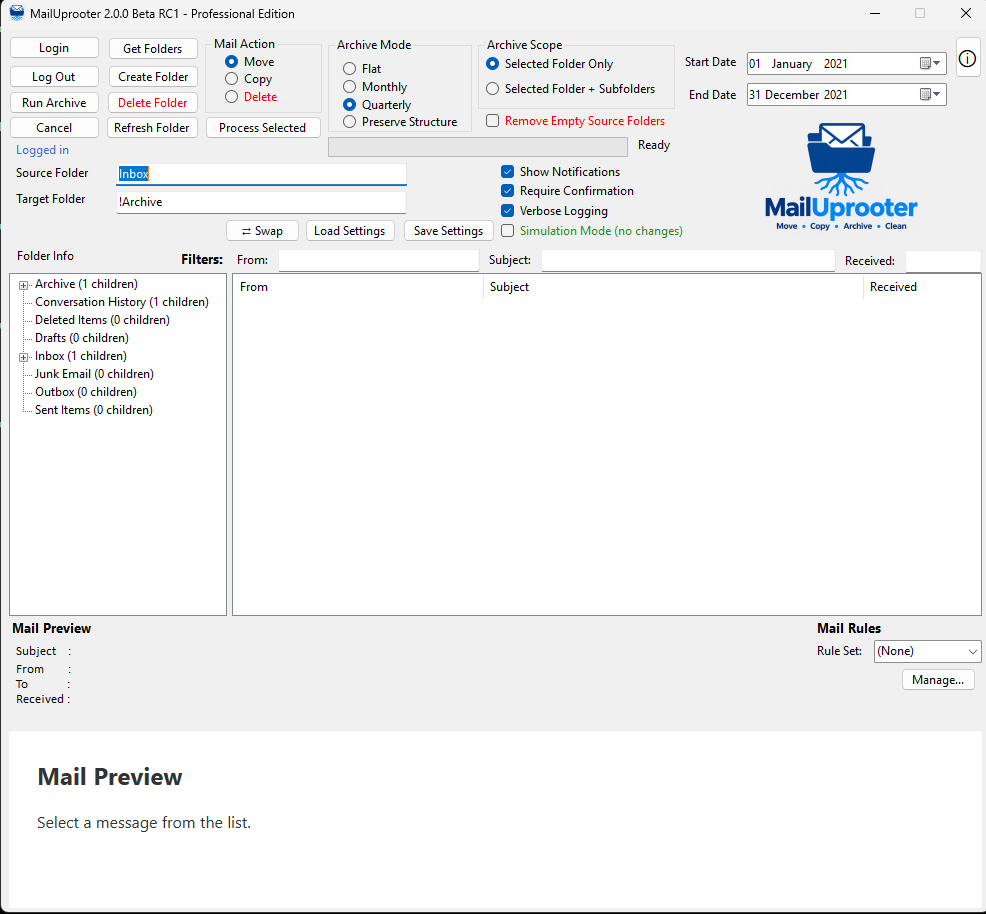
After authentication, MailUprooter will load your mailbox folder structure.
2. Select a Source Folder
The source folder is where MailUprooter will look for messages to process.
- Browse the folder tree.
- Right-click the folder you wish to process.
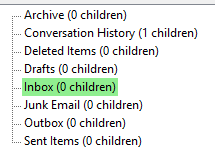
- Select Set as Source.
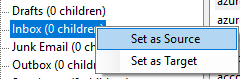
Source folders are highlighted in green.
3. Select a Target Folder
The target folder is where messages will be copied or moved.
- Locate the destination folder.
- Right-click the folder.
- Select Set as Target.
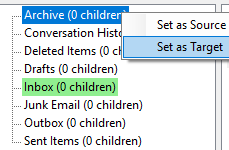
Target folders are highlighted in blue.
 4. Preview Messages
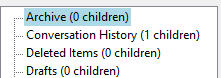
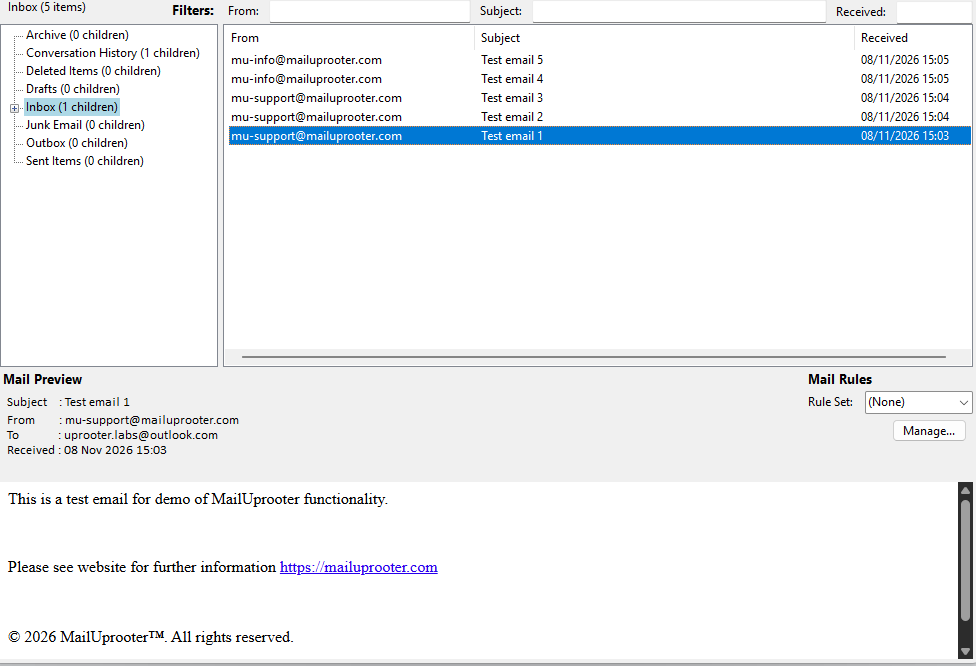
Double-click any folder in the folder tree to load its contents.
The message list displays:
- Sender
- Subject
- Received Date

Selecting a message displays a full preview of the email in the preview pane (You can drag this down for a larger view if required).
5. Filter Messages
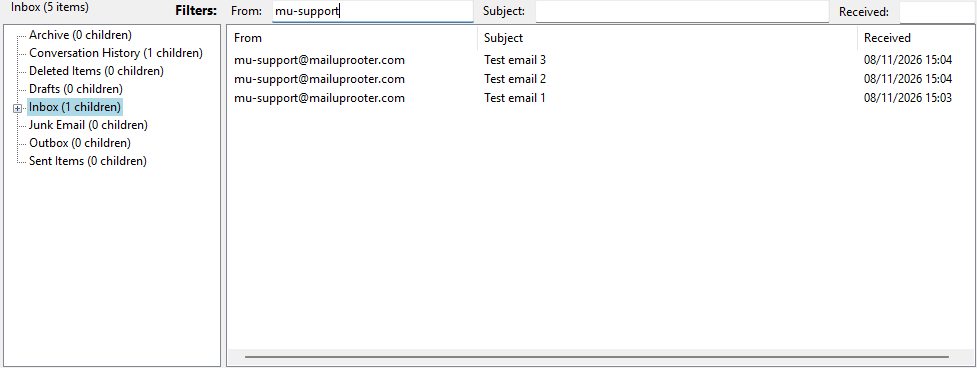
Use the filter boxes above the message list to quickly locate messages before performing an operation.
- From - Filter by sender.
- Subject - Filter by subject text.
- Received - Filter by date or time.
Filters are applied instantly as you type.
6. Moving or Copying Messages
- Select one or more messages.
- Choose Move or Copy mode.
- Confirm the source and target folders.
- Click Process Selected.
MailUprooter will display progress and provide confirmation when processing completes.
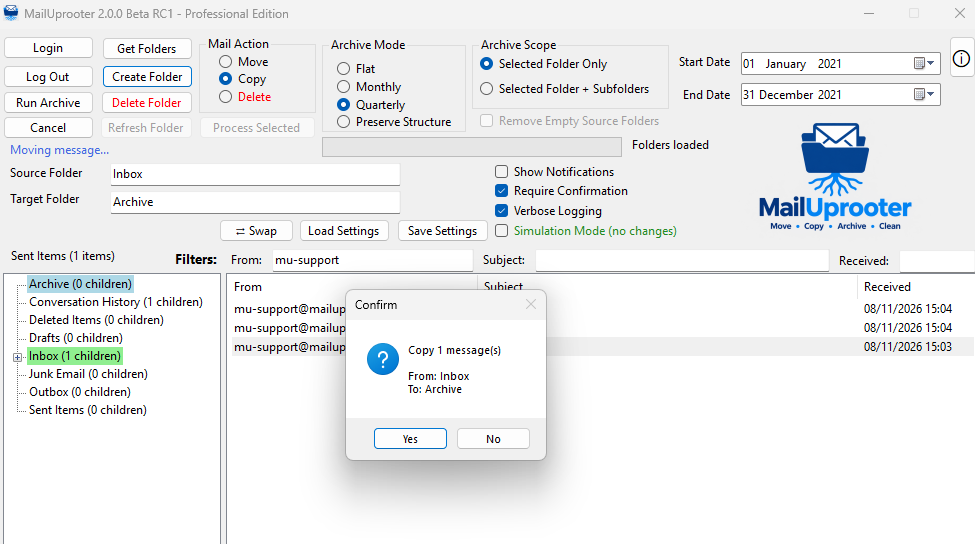
Please note, you can also drag and drop emails to move them to folders in the tree!
7. Running an Archive Job
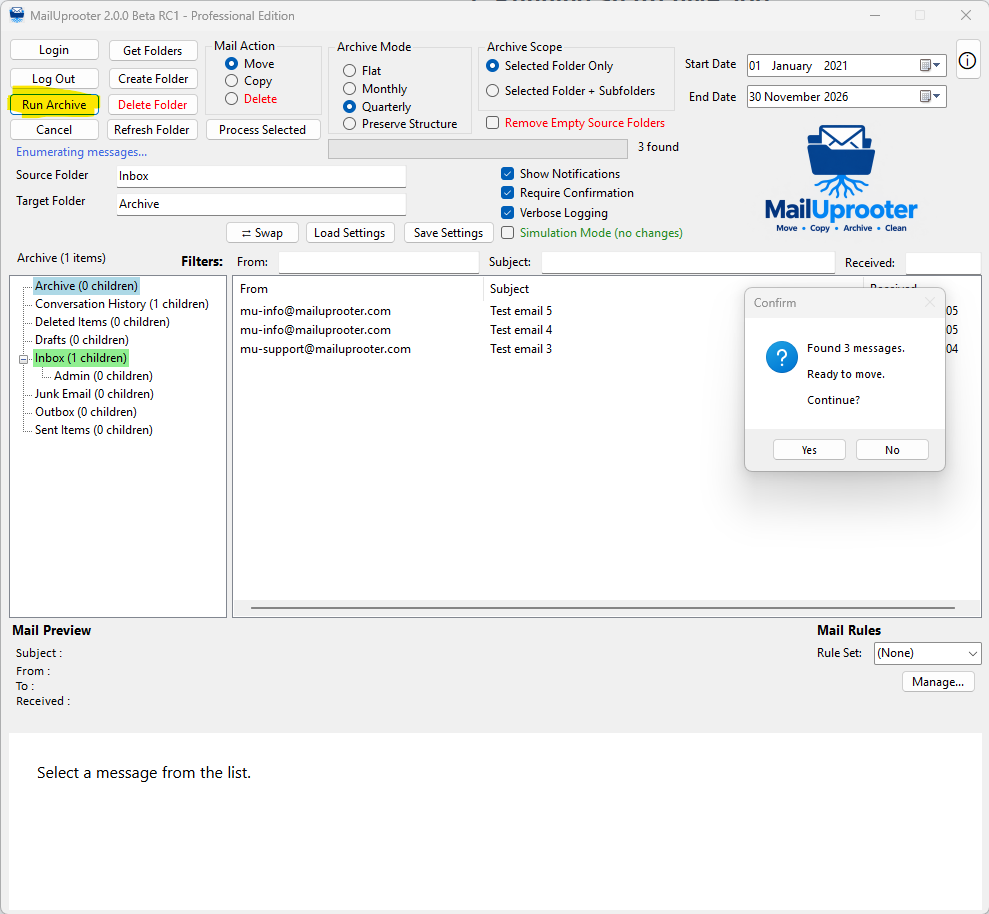
Archive operations move or copy messages automatically using date ranges and archive folder structures.
- Select a Source folder.
- Select a Target folder.
- Choose a date range.
- Select an Archive Mode.
- Run a Simulation.
- Review the results.
- Click Run Archive.
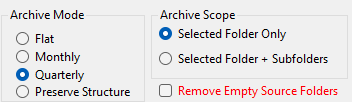
8. Archive Modes
- Flat - All messages are placed directly into the selected destination folder.
- Monthly - Messages are organised into month-based folders.
- Quarterly - Messages are organised into quarterly archive folders.
- Preserve Structure - Recreates the original source folder structure beneath the destination folder (Pro version feature).
- Remove Empty Source Folders - Removes source folder structure following archive if it becomes empty (Pro version feature).
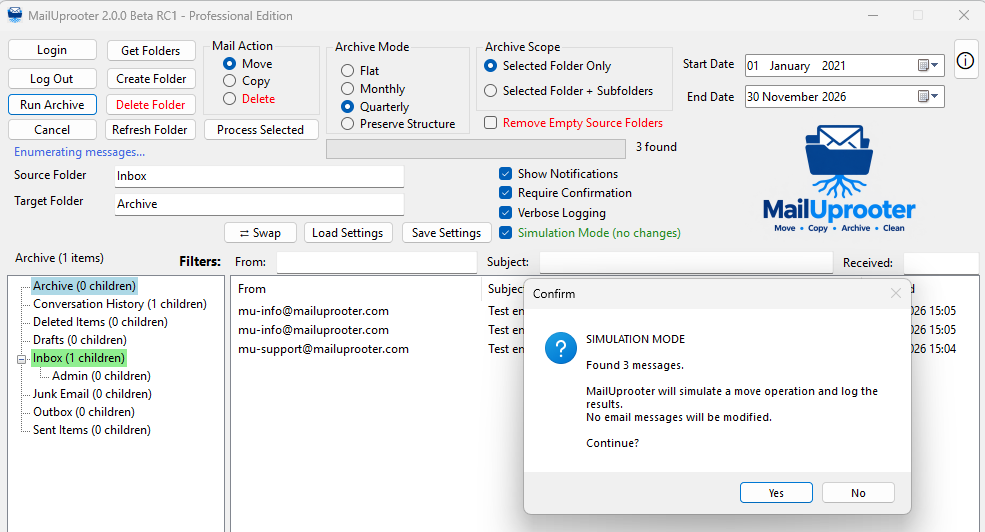
9. Simulation Mode
Review all simulation results carefully before running a live archive operation.
Pay particular attention to destination folders, processing rules and any messages that would be moved, copied or excluded.
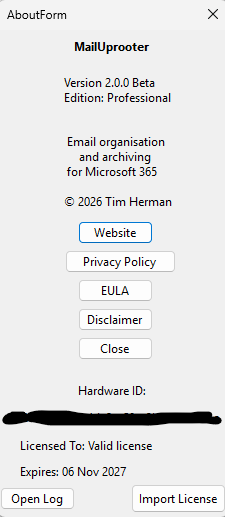
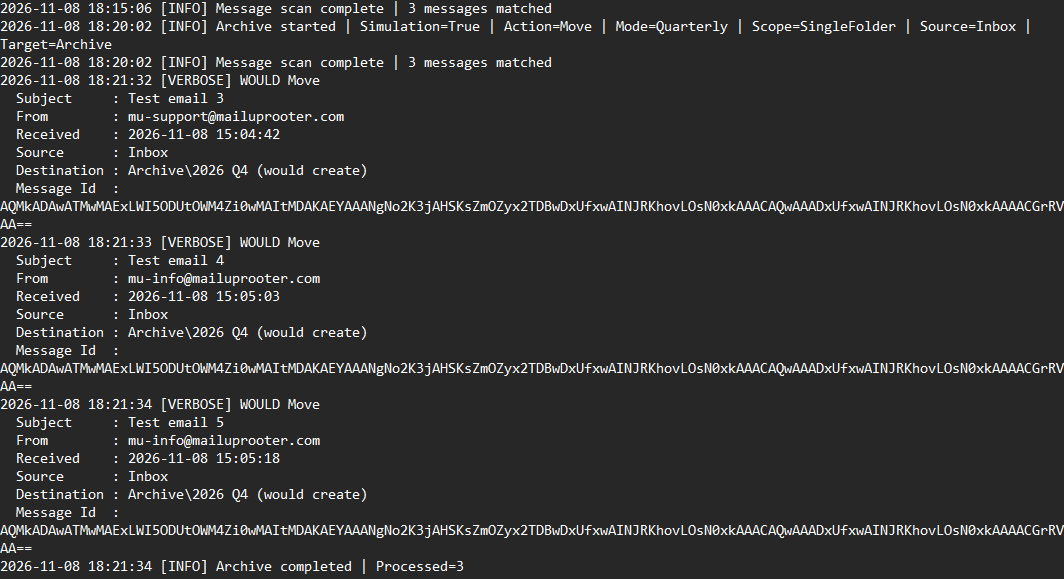
Review Log of simulated tasks (shortcut avaliable in about dialog)
10. Rules (Professional Edition)
Rules allow MailUprooter to automatically make decisions while processing mail.
Rules can be used to:
- Include specific messages.
- Exclude messages.
- Route messages to subfolders.
- Move messages to specific destinations.
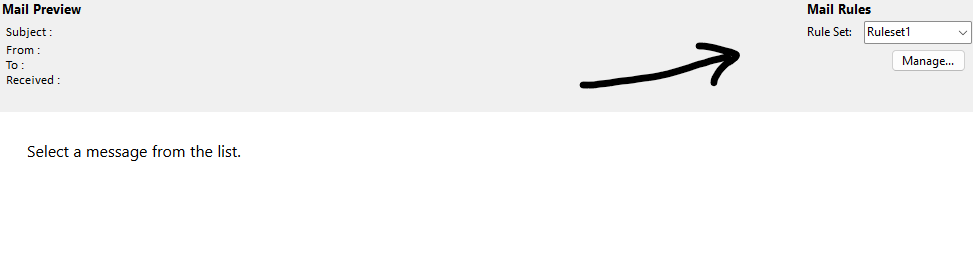
Ruleset Manager:
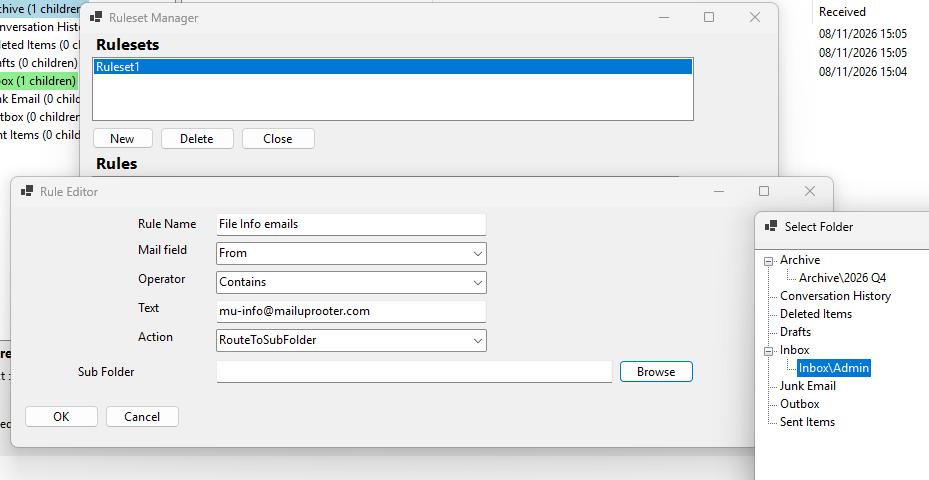
Rules can be created manually or generated directly from messages displayed in the preview pane.

11. Tips for New Users
- Always keep a mailbox backup.
- Run Simulation Mode before live operations.
- Test on a small folder first.
- Review logs after processing.
- Save your settings once configured.
Need More Help?
If you encounter problems or have questions about MailUprooter, you can contact me on the below support address. I will endevour to reply as soon as possible, and please provide as much information you can regarding any issues you encounter to help me assist you promptly.
Mail Uprooter is a small project and just one small part of a busy life, so I cannot make any gaurantees in regards to response times and effectiveness of any assistance provided will be on a best-efforts basis at present. Thank you for your understanding
Should I complete a release of the Paid Professional version of this product, support for licensed users will take priority.
MailUprooter Support
[email protected]
© 2026 MailUprooter™. All rights reserved.